Adding events to your calendar
There are three ways to add events to your calendar
To ensure you don't end up with duplicates in your calendar, please choose only ONE method.
- 1. Using the mobile app
- 2. Copying events (one by one)
- 3. Using the Muzodo calendar feed
1. Using the mobile app
The Muzodo mobile app is the simplest way to add events to your calendar.
Note: This requires giving Muzodo permission to access your calendar. Rest assured we only use this access to add, update and delete events created by Muzodo.
Optionally, you can allow Muzodo to show your calendar entries for the date of an event which will display (only for you) in the details of the event. This is convenient as it saves you having to switch to your calendar to see if you're busy when replying to an event.
Use a separate calendar?
With the setting below, Muzodo will add and update entries in your default calendar. You can get Muzodo to add events to a separate calendar, if you prefer. To do this, create a calendar called 'Muzodo' and ensure it it writable. In some calendar system (e.g. Google), you have to do this on the web (i.e. in your browser).
Switching it on
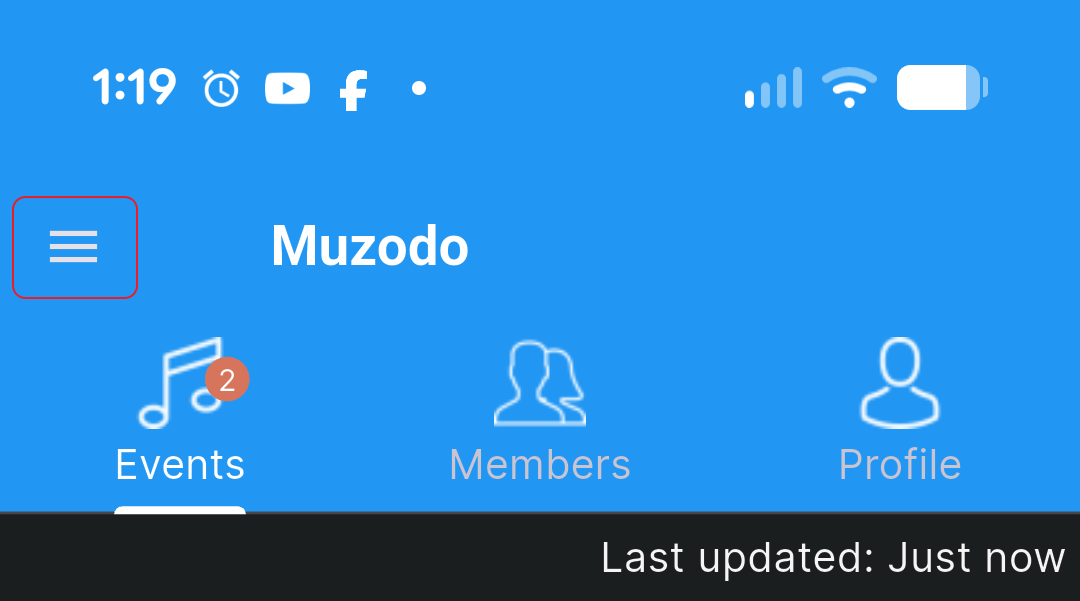
Once you've logged into the app, open the menu (3 lines on the top left) and choose Settings.
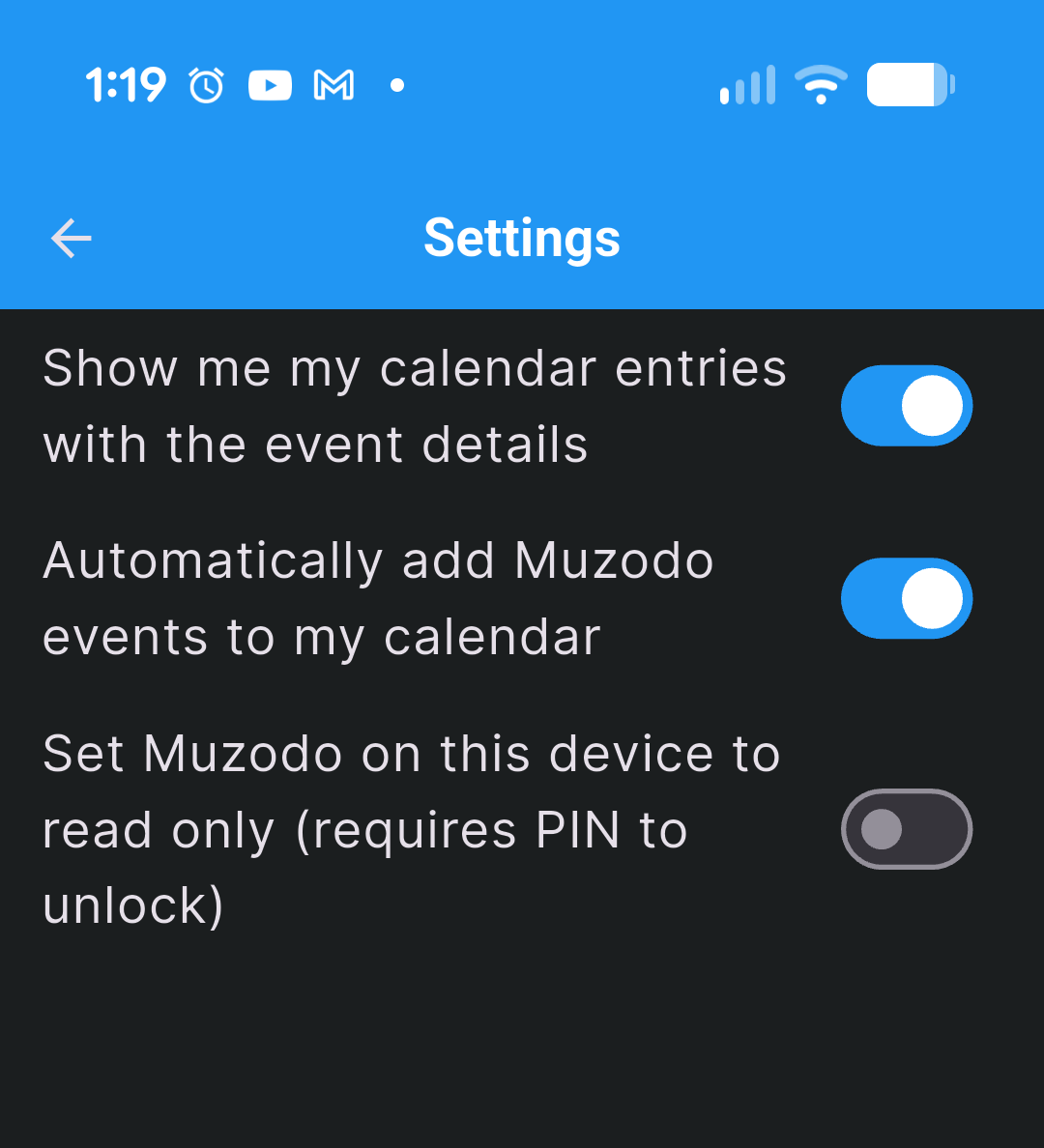
Enable the calendar setting 'Automatically add Muzodo events to my calendar'. You will then be asked to provide Muzodo access to your calendar.
How it works
As you enable this setting, Muzodo will create all upcoming events in your calendar. If you disable it, Muzodo will remove all upcoming events from your calendar.
Each calendar entry contains the text '[Maintained by Muzodo - DO NOT CHANGE]'. Note that it is possible to edit these events in your calendar but it is not recommended as they'll be overwritten the next time Muzodo refreshes the calendar.
2. Copying events
You can copy events into your calendar while viewing event details in Muzodo or just after you've responded to an event notification email.
Once you've responded to an event email, click 'Submit' at the bottom of the page and you'll see the response summary page.
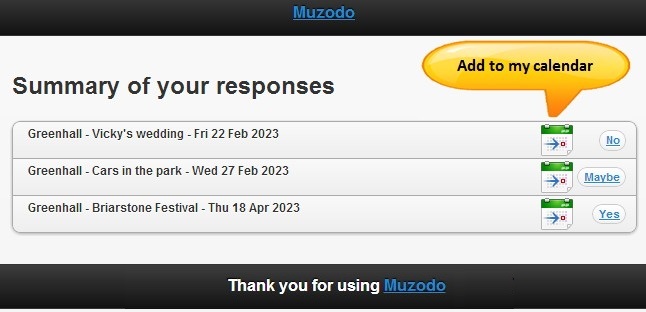
Click on the calendar icon to add your event.
3. Using the Muzodo calendar feed
The calendar feed enables you to view Muzodo events in your personal calendar. Modern calendars support this by accessing a URL and periodically downloading the event information and overlaying it in your calendar. Note that:
- Only upcoming events are included.
- The times used, if supplied, are Arrive Time and End Time. For consistency, Start Time is never used (even if it is entered and the Arrive Time is not).
- By default, events that you've replied 'No' to are excluded (see the 'EXCLUDE' parameter below to change this).
Getting your Muzodo calendar feed URL
The URL is of the form: https://muzodo.com/api/v1/user/<YOUR ID>/calendar.ics?TZ=<YOUR TIMEZONE>
- Your ID is found on your My Details tab in Muzodo. It looks something like: E097E12D-8E78-1E1F-D4EA-F59292F7E1FD
- Your timezone is something like: America/Vancouver (here, 'America' refers to the continents of North & South America, not the US). If you're not sure what value to use for your timezone, you can find it here.
- You can optionally specify an additional parameter 'EXCLUDE' to specify which events to exclude based on your response. Its value is a comma separated list of responses to exclude where:
N=No, Y=Yes, M=Maybe, NR=No Reply, IO=Info Only, NONE=include all
REH=Rehearsals
e.g. To exclude Maybes and No Replies, append&EXCLUDE=M,NRto the URL. - Should you wish to see cancelled events, add the optional parameter 'INCLUDE' with the value 'C'. i.e. append
&INCLUDE=Cto the URL.
&TZ=<YOUR TIMEZONE> ) parameter in the URL.
Google calendar
The TZ parameter required
If you're using Google calendar follow the steps below to add your Muzodo events.
Open Google Calendar. On the left, click the + sign on the left beside "Add a friend's calendar":
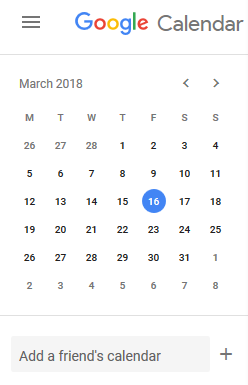
In the menu, choose 'From URL':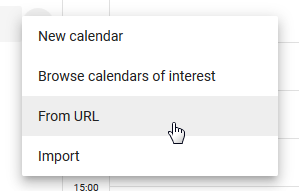
Copy and paste your Muzodo calendar URL above and click 'Add Calendar'
- this will import your events from Muzodo
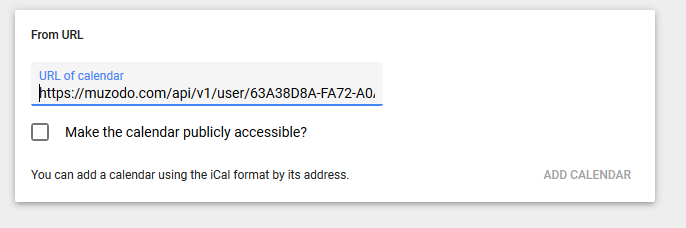
The new calendar will use the URL as the name. To rename it, click the three dots beside the name:
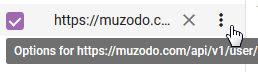
From the menu, choose Settings: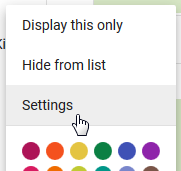
In the Name box, type Muzodo (or any other name you wish to use - note the URL is unchanged below):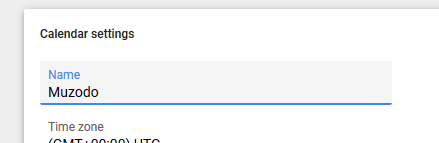
Optionally, change the color of the calendar to something bold or different from your other calendars.
If you use an Android phone, check the Calendar app's Settings and ensure that the Muzodo calendar is enabled there, and that Sync is enabled:
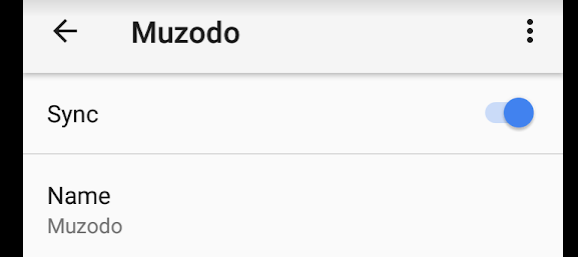
Google's calendars are UTC based which is why we have to give a time zone.
You'll notice when you travel across timezones, the times in your Google calendar change, showing times in the local time where you are.
This can be very confusing if you're not aware of it. For things like teleconferences across the country this can be very handy.
For other things, you may be wondering why your child's soccer practice is at 9pm instead of 6pm!
See Google Calendar for more details.
Also note: It may take a few minutes for your calendar to fully load in Google.
When you make changes in Muzodo, there is a delay before you see the changes in your calendar (normally a few hours).
Yahoo calendar
The TZ parameter required
If you're using Yahoo calendar follow the steps below to add your Muzodo events.
Open Yahoo Calendar
On the left, mouse over the Others link to import 'other' calendars. Click the settings cog that appears.
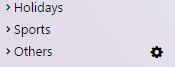
Select Follow Other Calendars
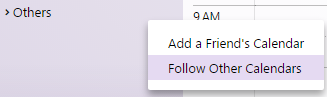
Change the calendar name to Muzodo, copy and paste your calendar URL and click Continue 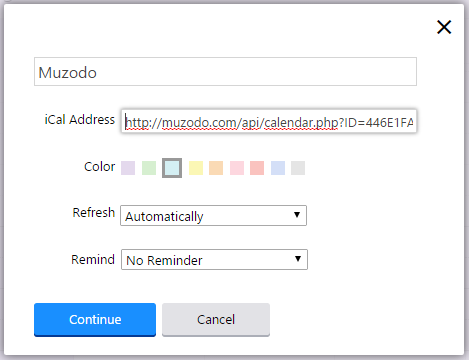
Outlook calendar
TZ parameter optional
Internet Calendar Subscriptions can be added, changed, or removed from the Account Settings dialog box. On the Tools menu, click Account Settings, and then click the Internet Calendars tab.
See: Microsoft Office - Add an Internet Calendar Subscription to Outlook You can ignore the requirements of the URL starting with webcal://.